本文说明如何将本地使用密码访问的github仓库切换为token访问。
今天向github推送分支输入用户名和密码后出现以下提示
remote: Support for password authentication was removed on August 13, 2021. Please use a personal access token instead.
remote: Please see https://github.blog/2020-12-15-token-authentication-requirements-for-git-operations/ for more information.
github为了安全已经取消了远端的密码登录,必须使用token或者ssh访问。
创建token 链接到标题
按照下面步骤操作:
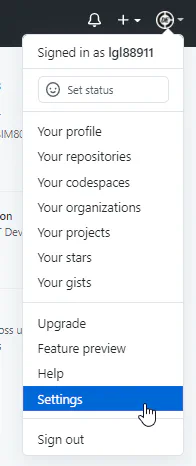
1.点击Settings
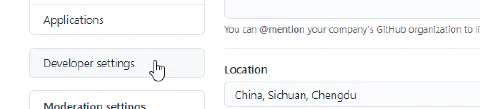
 2.点击Developer setting
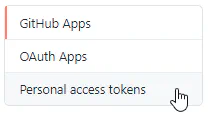
 3.点击Personal access tokens
 4.点击Generate new token
 5.点选好repo后,点击Generate token会产生token值
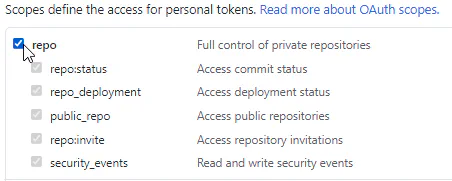
记录下token值, 页面关闭后将无法再看到。
修改remote 链接到标题
使用git remote -v查看要修改的地址
origin  https://github.com/xxx/xxx.git (fetch)
origin  https://github.com/xxx/xxx.git (push)
移除remote git remote remove origin
重新添加带有token的remote地址
git remote add origin https://<token>@github.com/xxx/xxx.git
之后就可以正常提交分支推送代码,也无需再输入账号和密码。